
The math is done — now what? Make "how to pay you" clear with Paji Splitly payment methods
A full guide to Paji Splitly payment methods: setting up multiple accounts, matching them by currency, manual vs auto-share, what the payer sees at settlement, plus common questions like changing accounts or leaving a bill.
The math is done — now what?
You get back from a trip, dinner wraps up, and Paji Splitly settles everything in seconds: you owe NT$340 to Alice.
The number is clean. But the next step is where things usually stall.
You still flip back to chat and ask, "Hey, what's your account?" Alice digs around, pastes a string of digits, and you copy it into your banking app — that round trip takes longer than the math did.
That is the last mile payment methods close. The person getting paid saves their account, link, or QR code ahead of time, and at settlement the person paying sees exactly where to send the money — no need to ask again.
Set up your payment methods once
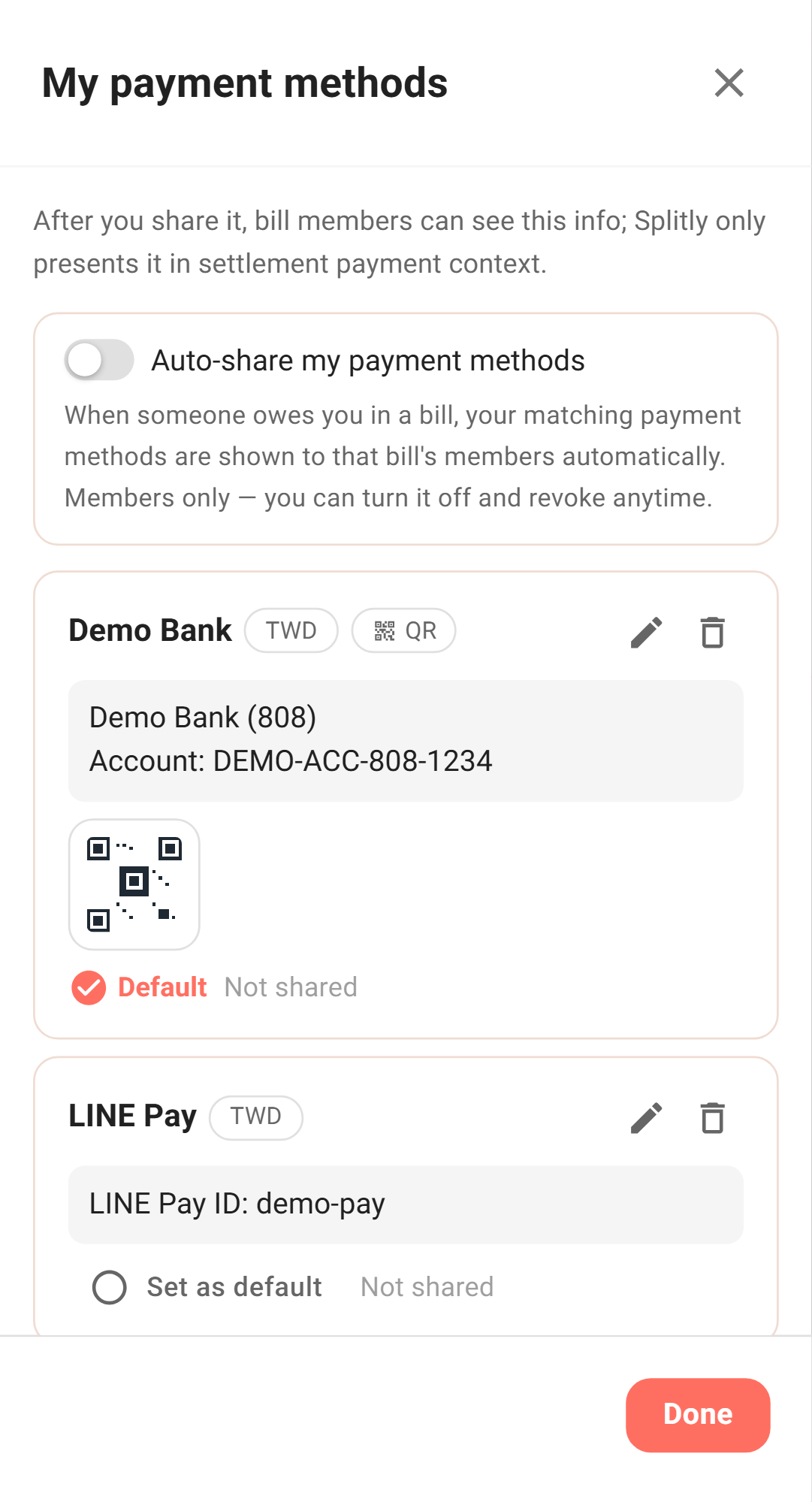
Payment methods are tied to you, not to a single bill, so you set them up once and reuse them everywhere.
There are three ways in — pick whichever is handy:
- "My payment methods" in the profile menu.
- The "Splitting settings" section on the settings page.
- The payment methods shortcut at the top right of the home page.
Each one only needs a few fields:
- Name: a label for your own reference, like a bank account or LINE Pay.
- Currency: whether this one collects TWD, JPY, or works for any currency.
- Payment details: an account number, ID, or payment link — free text.
- Payment QR (optional): upload a QR code so people can just scan and pay.
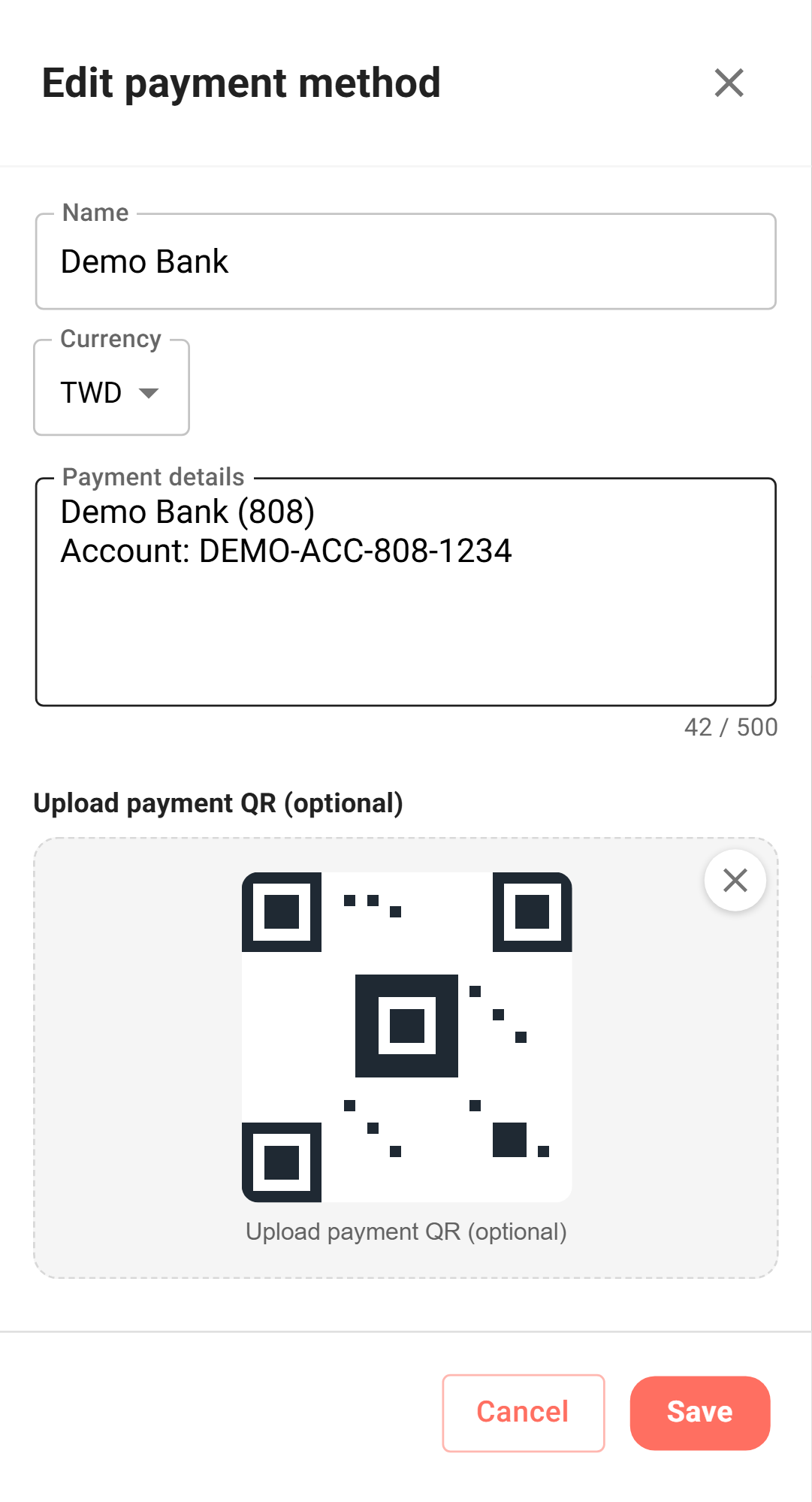
You can keep up to 5 and mark one as the default. One or two is plenty for most people. If you collect in different situations, having a few is where "currency" earns its keep — say, a bank account for TWD and PayPal for JPY. At settlement, Paji Splitly shows the one that matches the currency you owe.
Share to a bill: one tap, and everyone in the bill can see
Your payment methods do not jump into every bill on their own. To show them in a bill, you actively "Share my payment methods" — on purpose, because your account is personal info, and where it goes is your call.
Open "Share my payment methods" inside a bill and you get a checklist. Paji Splitly pre-checks a few for you:
- The ones whose currency matches this bill.
- Any "any-currency" methods.
- Your default.
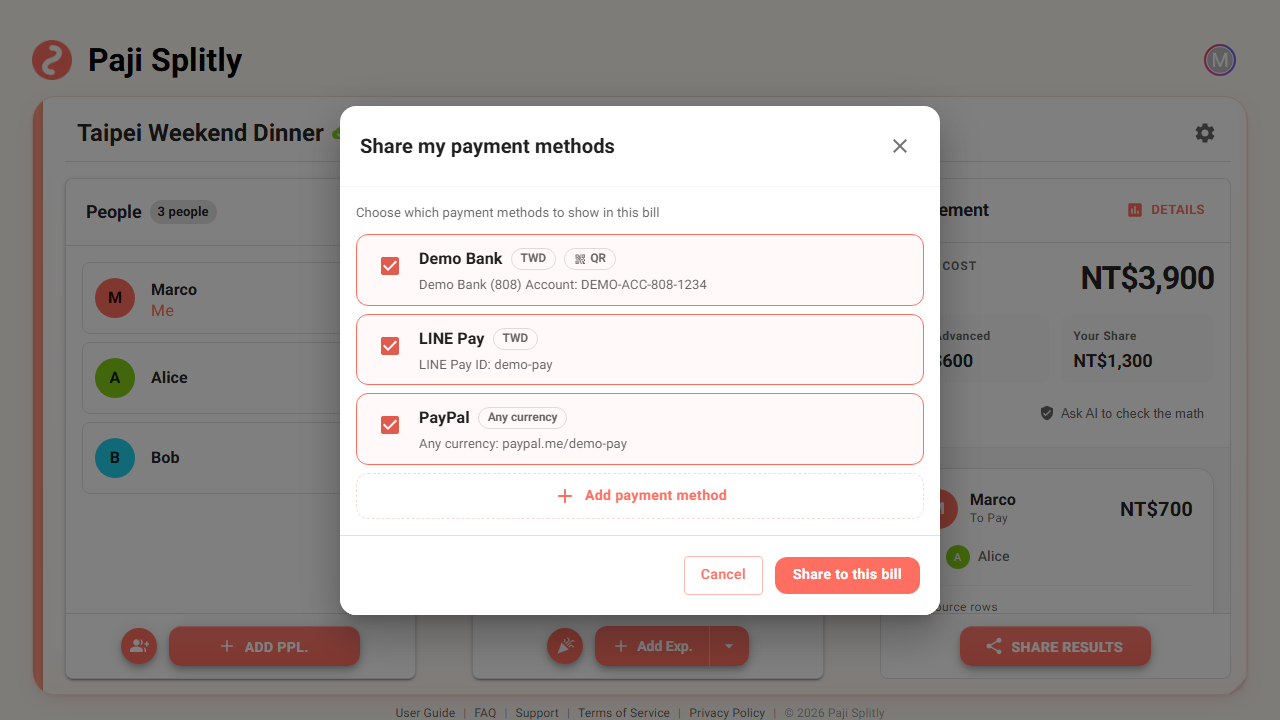
You can adjust the checkboxes yourself, and after sharing you can update them to the latest or stop sharing anytime. What gets shared is just a display copy — the original still lives in your "My payment methods".
At settlement, what the person paying sees
Once shared, payment methods show up on the "Personal Bill" tab of the settlement details.
The good part: they sit right under the rows that aren't settled yet, so there is nothing extra to dig for.
- The "To Pay" row shows the other person's payment method — how you send the money to them.
- The "To Receive" row shows your own shared account — how others pay you. If you haven't shared yet, a prompt here nudges you to add it.
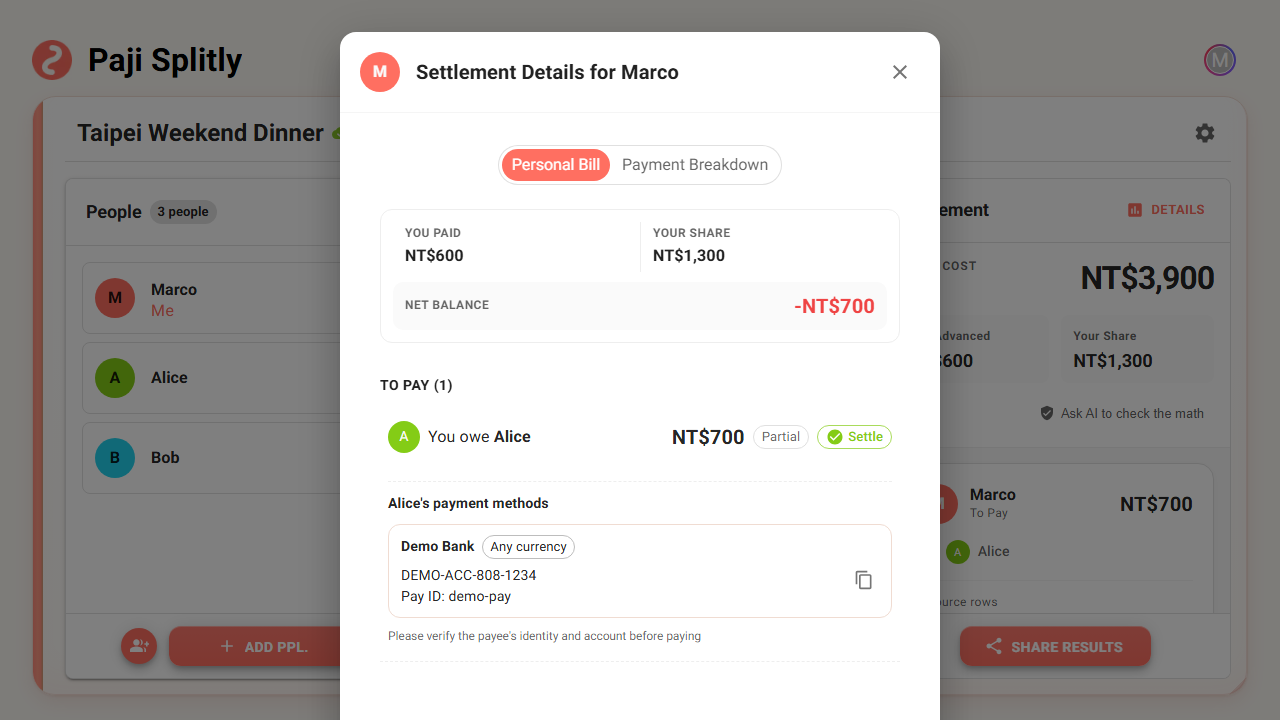
Tap to copy the account and paste it into your banking app; tap the QR to enlarge it and scan from another phone. Rows that are already settled stop showing the account — it's paid, no reason to keep it around.
If you're often the one collecting, turn on auto-share
If you are the friend who fronts the card on every trip and dinner, sharing your payment methods by hand in each new bill gets old fast.
That is what auto-share is for. Turn it on, and every time you join a qualifying new bill, Paji Splitly brings your payment methods in automatically — no manual step.
But it is off by default. The reason is simple: your account is personal info, and it should not go out before you say so. There are two places to turn it on:
- The "Auto-share my payment methods" toggle in the "My payment methods" manager.
- At settlement, if you happen to be the one being paid and haven't shared yet, a small card asks: "Show in this bill / Always auto-share / Not now." "Always auto-share" flips the toggle on; "Not now" stops that bill from asking again.
Change your mind later and you can turn it off. When you do, Paji Splitly confirms once and only pulls back the copies it shared automatically — anything you shared by hand stays put.
Changing accounts, stopping sharing, someone leaving the bill
The thing payment methods most need to get right is "I changed my account, but old bills still show the old one." Paji Splitly has you covered:
- Changed your account: edit "My payment methods" once, and every bill you have already shared to updates too — even unpaid old debts show your new account, so you don't fix them one by one.
- Stop sharing: each method shows "Shared to N bills" in the manager; expand it and cancel them one at a time.
- Leaving a bill: when you leave a bill, the payment method you shared there is removed with you — it won't linger where others can see it.
- Deleting your account: if you drop your whole account, the shared copies scattered across bills get cleared too.
In short, the original lives in exactly one place; everything else is its shadow. Touch the original and the shadows follow, or disappear.
A few common questions
Who can see my payment methods?
Only members of the same bill. They are never written into a share link, a CSV export, or anything sent outside the app. Members on the share or read-only view can see them too — because they are already members of the bill. Put plainly: bill members can already see every expense and amount, so payment methods just ride along in the payment context for whoever is paying. It is not per-person encryption.
Can I use this without signing up?
No. Payment methods are tied to your account, so you need to register and sign in to set them up and share them. In the sign-up-free guest mode, the feature doesn't come into play.
Will Paji Splitly transfer the money or confirm it arrived?
No. It just organizes the account, link, and QR you entered yourself and shows them at the right moment — it doesn't touch any money, doesn't trigger a payment for you, and doesn't verify whether an account is real. Every payment method carries a reminder: confirm the payee's identity and account before you pay.
Wrapping up: from "the math adds up" to "it's clear who to pay"
Paji Splitly has always been good at getting the numbers right. But after the math, people still get stuck on "so where do I actually send it?"
Payment methods do that one small thing: the person collecting saves their account ahead of time, and the person paying sees it right at settlement — copy or scan, done. Set it once, bring it in automatically when you need to, and you still decide whether to share and with which bill.
A good splitting tool should keep the hassle where it belongs, not leave you asking around for accounts after the math is done. Make "how to pay you" clear too, and the bill is finally, really settled.