
A friend dropped you a split-bill link? Here's how to hop into their bill
A split-bill link pops up in the group chat, but tapping it asks you to join first? Here's how joining someone else's bill works in Paji Splitly — why you join first, how to claim your own name, logging without signing up, and what happens once you're in.
A link just popped up in the group chat
You've probably been here before.
Last week's trip, or that dinner a few days ago — someone always fronts a fair bit on the spot. Afterwards, a link shows up in the group chat with a line like: "Here's our split bill, everyone hop in and log your share."
And just like that, you're the one being pulled in.
Whoever started it has usually set things up already; now it's your turn — tap the link, add yourself, and you can start logging. It's quick, really.
This walks you through it: what you see after tapping the link, how to match yourself to a name already on the list, logging without signing up, and how everyone records together once you're in. Knowing what each step is for makes the whole thing smoother.
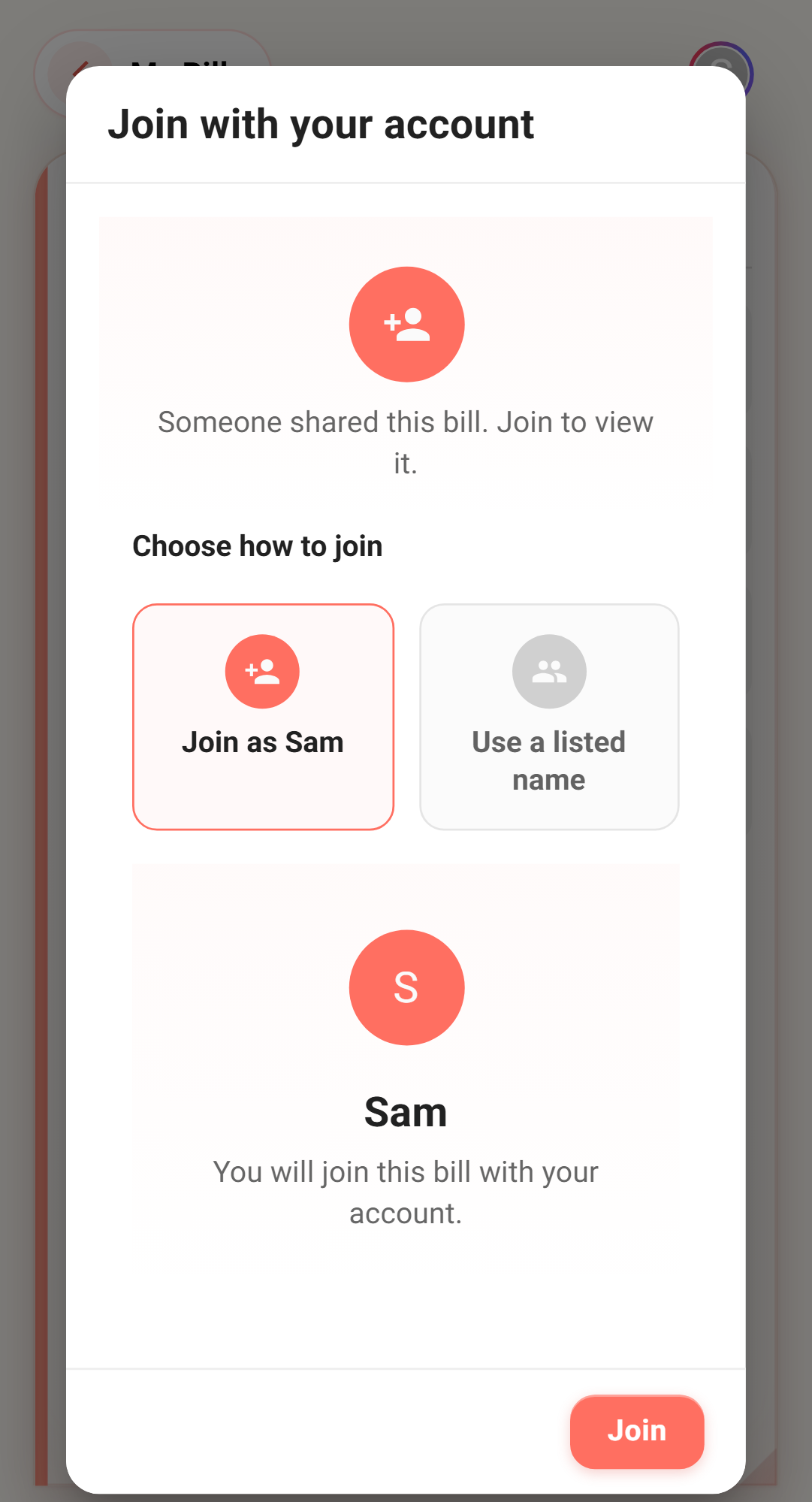
Tap the link, then pick who you are
The link your friend sent gets you in the moment you tap it — it carries a private invite code, and that code is your key.
Once you're in, Paji Splitly first has you pick an identity — which person on this bill is you.
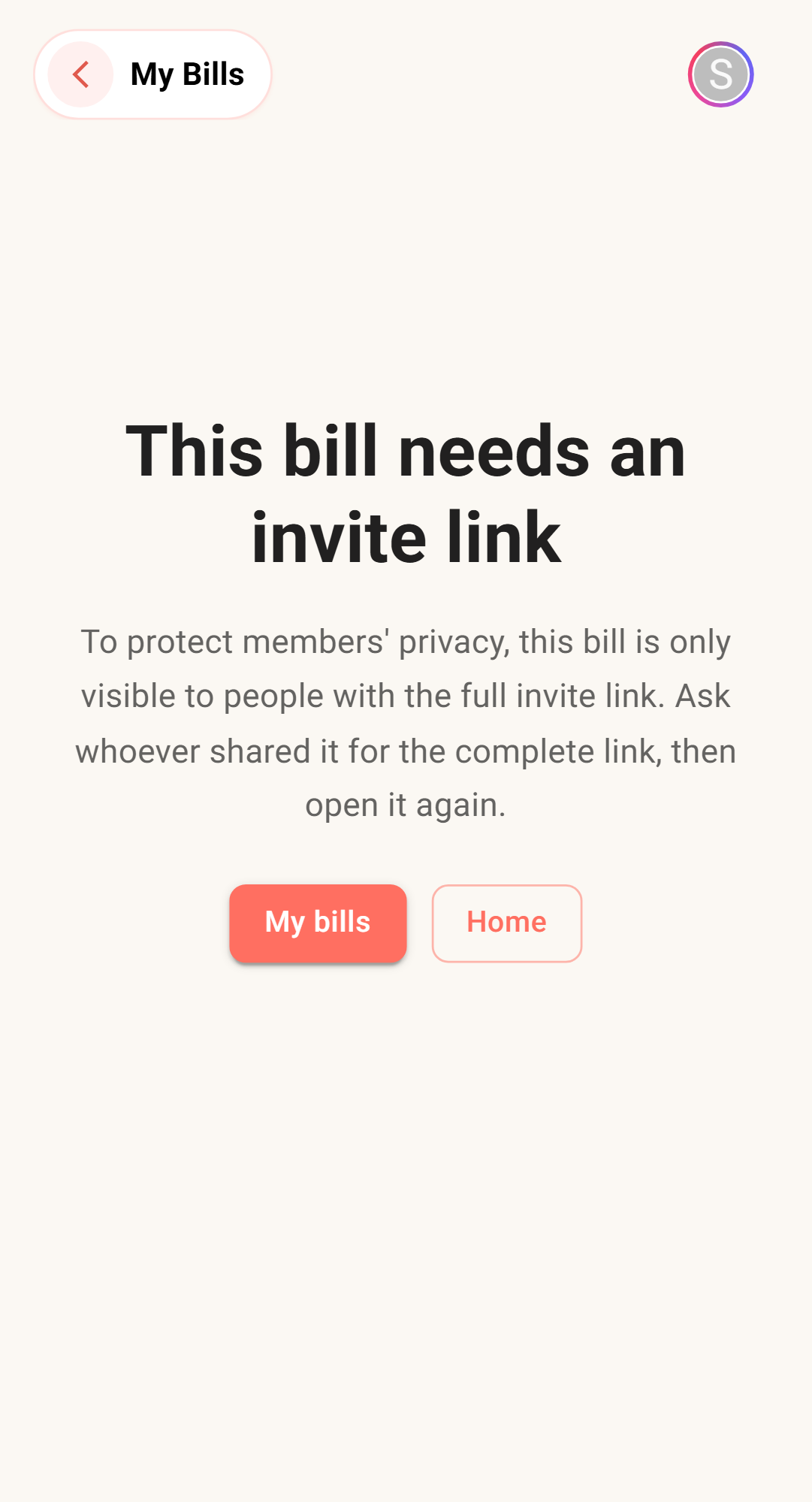
And because the key lives in that invite code, the bill doesn't get exposed just because a link gets passed around. So you can't just copy the address from your browser and hand it to someone — without the invite code, that bare URL does nothing; they'll only see "This bill needs an invite link," with no name, members, or amounts. To bring someone new in, it still has to be the owner sharing the full invite link.
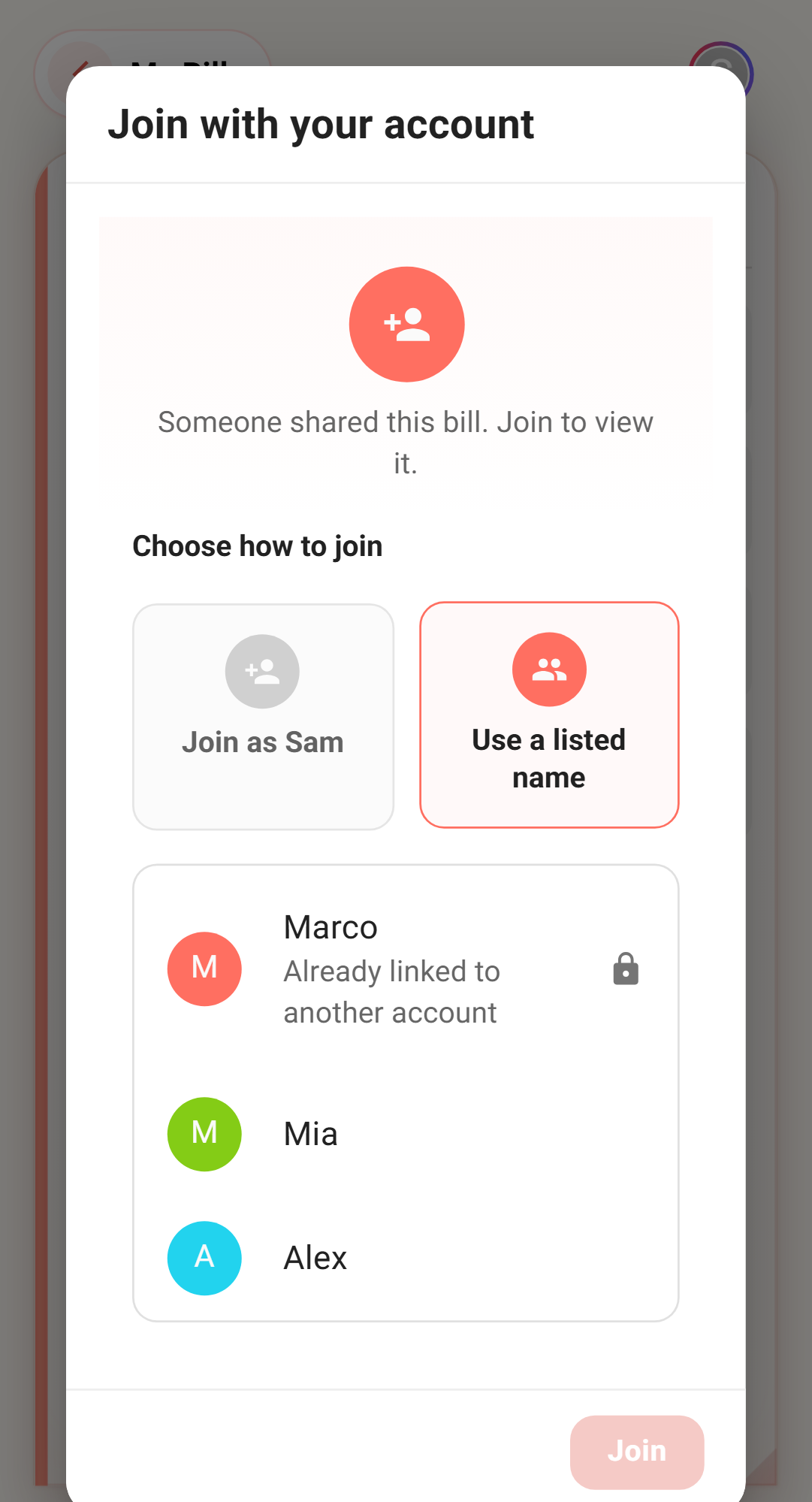
When you join, claim yourself first
Whoever started the bill sometimes lists everyone's names up front — typed in one by one, held by a placeholder name, or left over from a guest last time. So when you come in, there's a good chance a "you" is already on the list.
When that happens, don't rush to add another you.
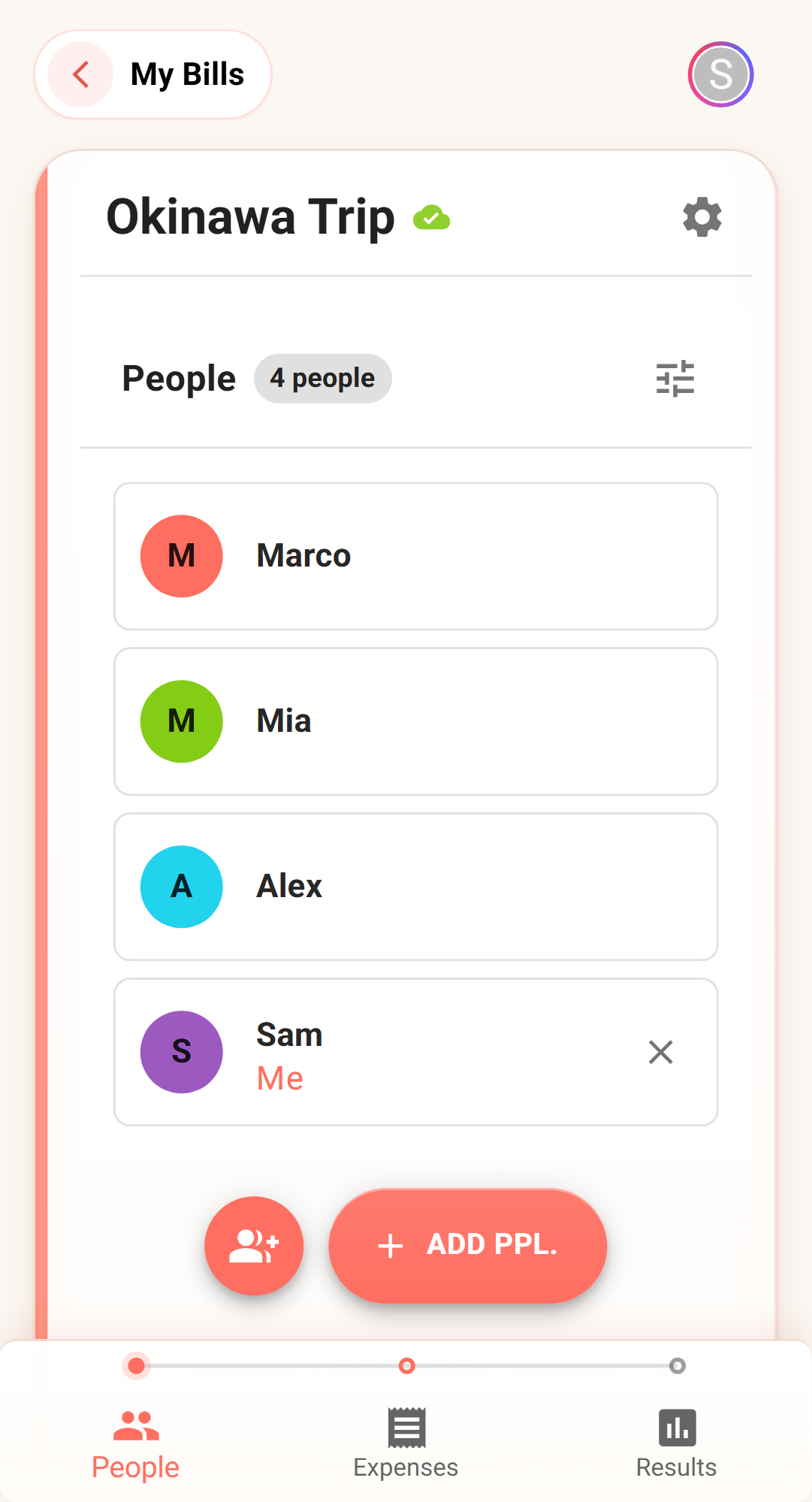
Paji Splitly has a "use a name on the list" option that lets you claim the spot that's already yours. Claim it, and everything you fronted or were assigned flows onto you — instead of a duplicate person showing up out of nowhere and throwing the math off.
Of course, if you scan the list and you're genuinely not there, just add yourself.
One ground rule while we're here: a member already tied to an account can't be claimed by someone else. Once a name is linked to its owner's account, it's theirs — so when a whole group is logging together, nobody, by accident or on purpose, takes over someone else.
No sign-up needed to start logging
A lot of people see the word "join" and their first thought is: do I have to register an account again?
You don't.
You don't need to sign up or go fetch a verification email to get in. Scan the QR, tap the link, claim your name, and you can start logging. In the middle of a dinner or a trip, who has time to set up an account.
And if later you want to keep these records more securely, or see this bill in your own "My bills," just log in. Once you do, what you logged as a guest carries over to your cloud account — none of it wasted.
Let you start first, then let you decide whether to stay. That's the order, no pressure.
Once you're in, the app quietly handles a few things
Once you're in, everyone's logging together. A few things are handled quietly in the background — worth a mention so you can relax.
When several people log at once, the screen syncs in real time — you add an item and the others see it shortly after, so two people don't end up keeping separate tallies that won't reconcile.
Lost signal? No worry. Offline, you can keep logging; those actions line up in a queue waiting to sync, and the moment you're back online Paji Splitly sends them through for you — nothing you logged quietly disappears.
One more thing, about who can do what. The person who created the bill is the owner; things like deleting the whole bill or managing the invite link are theirs. As a member who joined, you can log and edit freely, and you can use "Leave" or "Archive" to tidy your own view; when you want to see the result, you'll get "View settlement," and whether that result gets forwarded out is still the owner's call.
These boundaries aren't there to tie your hands — they keep a shared bill from getting nudged somewhere it shouldn't by a slip of someone's finger.
And if this time you're the one starting?
Now that joining's covered, a quick word on the other side — after all, you're pulled in today, but next time you might be the one rallying the group.
If this trip's on you and the bill's yours to open, it's not complicated either: log in, hit "Create new bill" in "My bills," fill in a name, pick a settlement currency, choose regular or travel mode, and you're set (the name and currency can change later). For the crew you split with often, the ▾ next to the button lets you pull in a ready-made group or an old bill as the lineup, bringing the members and setup along with one tap — no retyping every time.
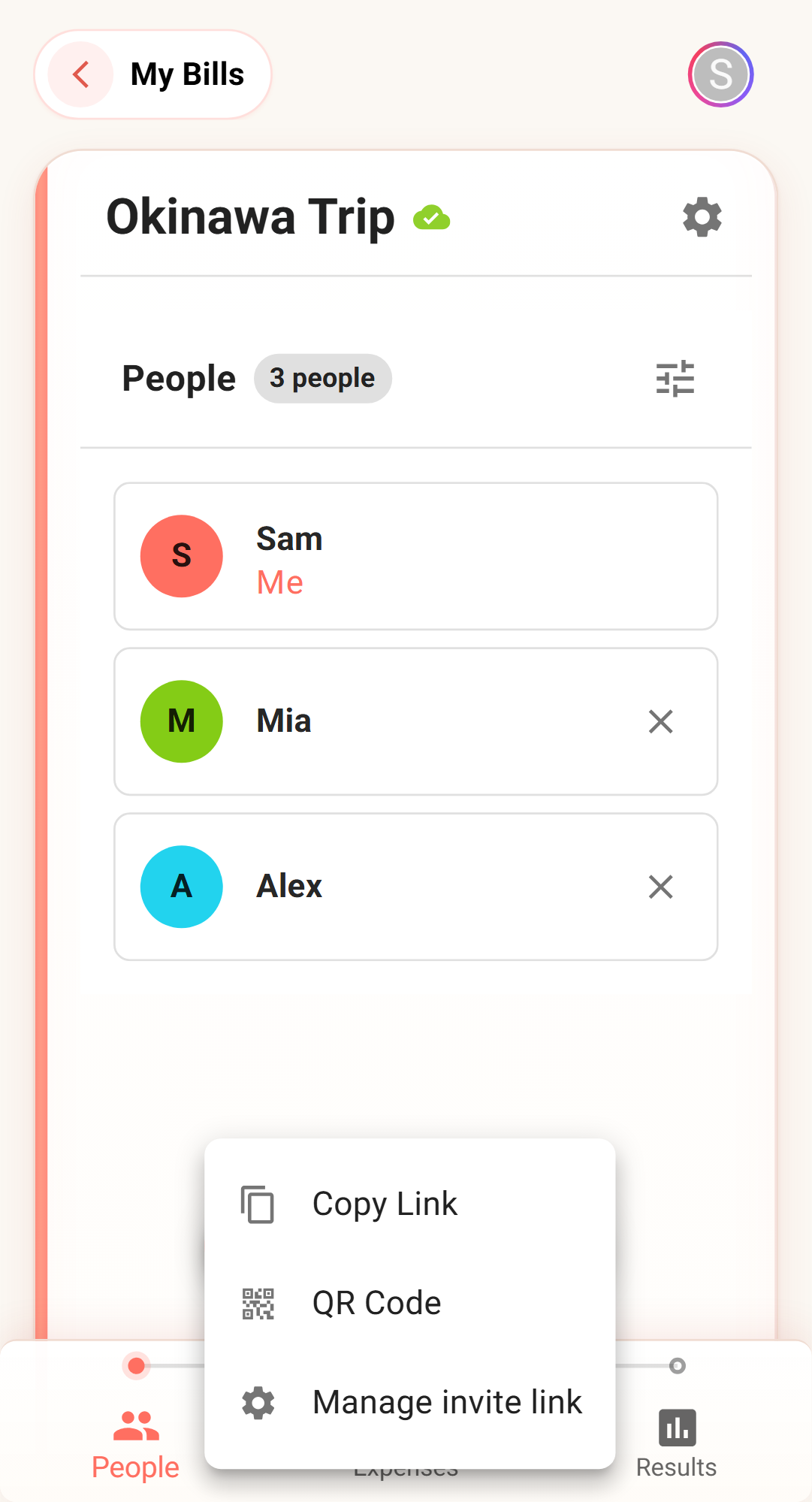
Once the bill's open, copy that private invite link or let everyone scan the QR — and the rest is them tapping the link, claiming their names, and hopping in one by one.
In short: joining someone's bill really isn't that much trouble
Getting pulled into a split bill, a few small question marks might flit through your mind — why can't I see anything after tapping in? Should I add another me? Do I have to sign up first?
Paji Splitly has thought these through for you: you join before you can see, to protect everyone's privacy; you claim yourself on the list, so the bill isn't double-counted; you can log without signing up, because it won't put you on the spot in the middle of the chaos.
At the end of the day, joining someone else's bill should be as smooth as "tap the link, claim your name, start logging." The syncing, the reconciling, the settling — leave those for Paji Splitly to tie up behind you.